
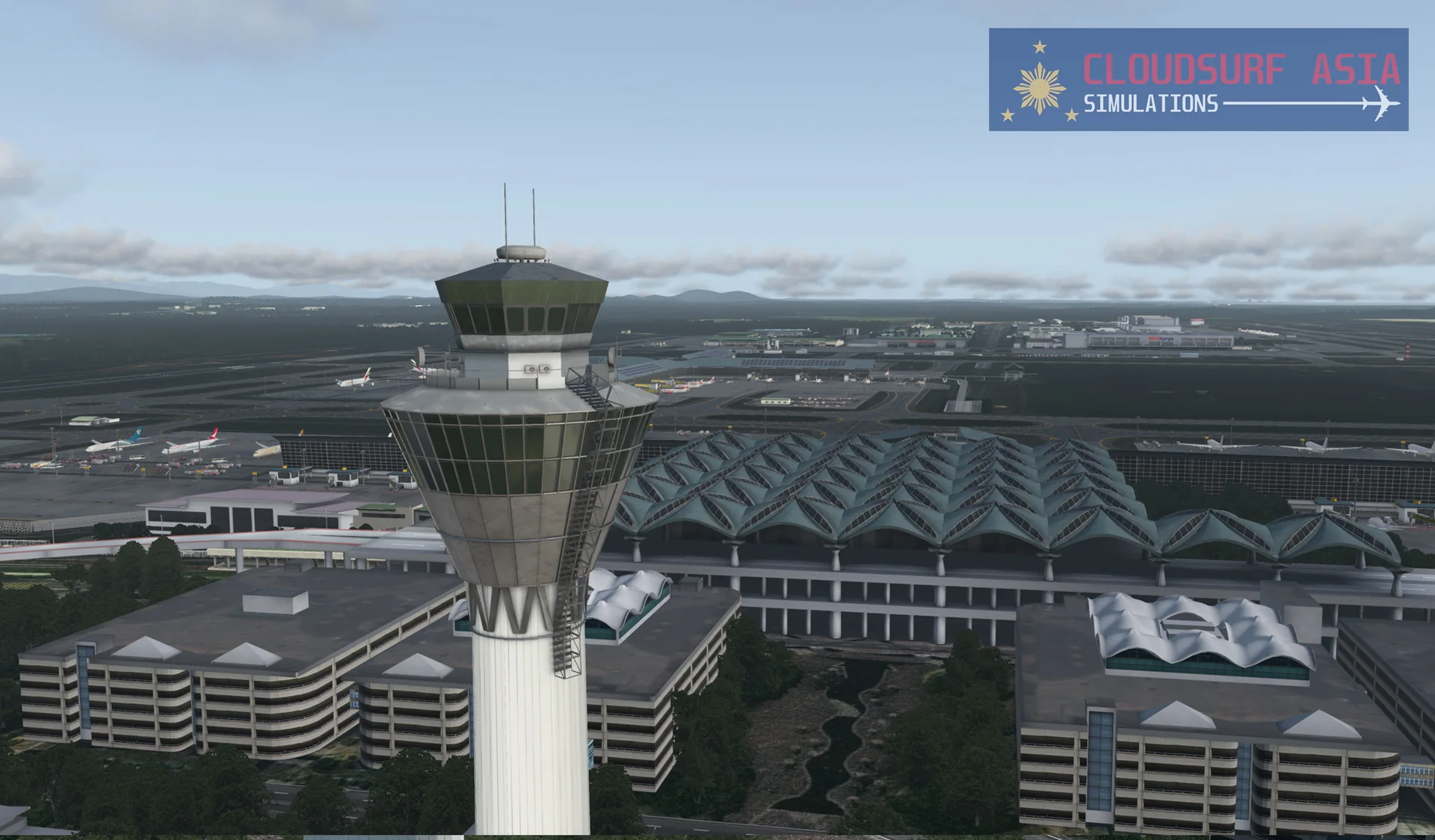
About the scenery
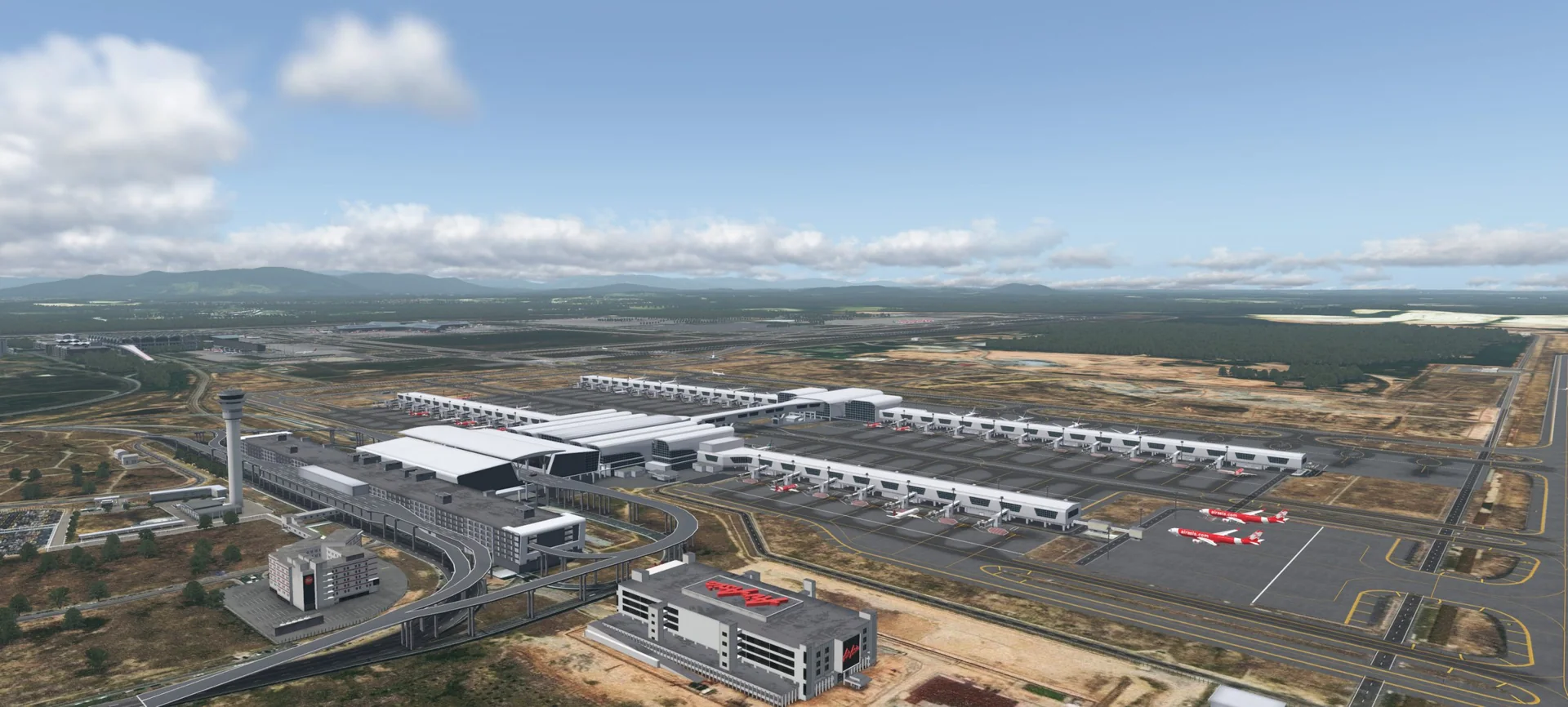
Kuala Lumpur International Airport (KLIA; Malay: Lapangan Terbang Antarabangsa Kuala Lumpur) is Malaysia's main international airport and one of the biggest airports in Southeast Asia and worldwide. It is located in the Sepang District of Selangor, about 45 km south of Kuala Lumpur city centre, and serves the Greater Klang Valley conurbation.
KLIA is the largest and busiest airport in Malaysia. In 2018 it handled 59,988,409 passengers, 714,669 tonnes of cargo and 399,827 aircraft movements, making it the world's 23rd-busiest airport by total passenger traffic. It is operated by Malaysia Airports (MAHB) Sepang Sdn Bhd and is the main hub of Malaysia Airlines, MASkargo, AirAsia, AirAsia X, Malindo Air, flyGlobal, UPS Airlines and AsiaCargo Express.
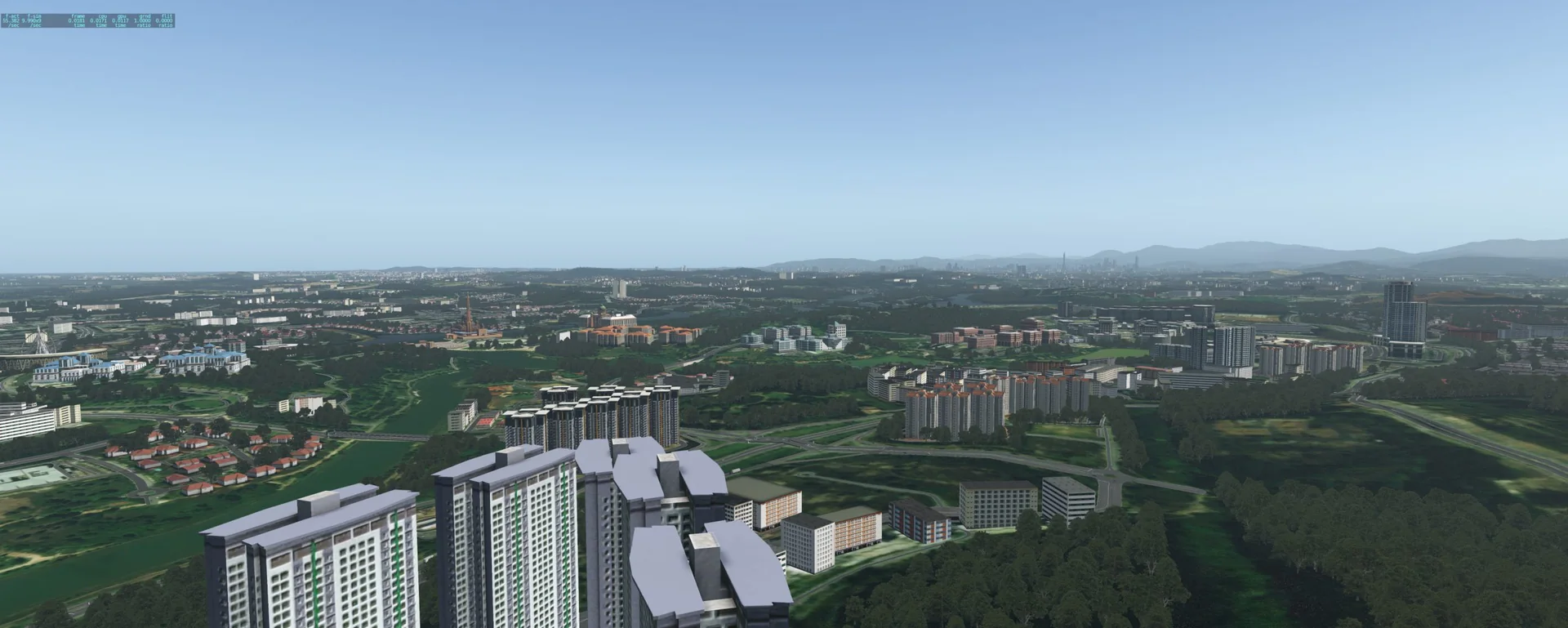
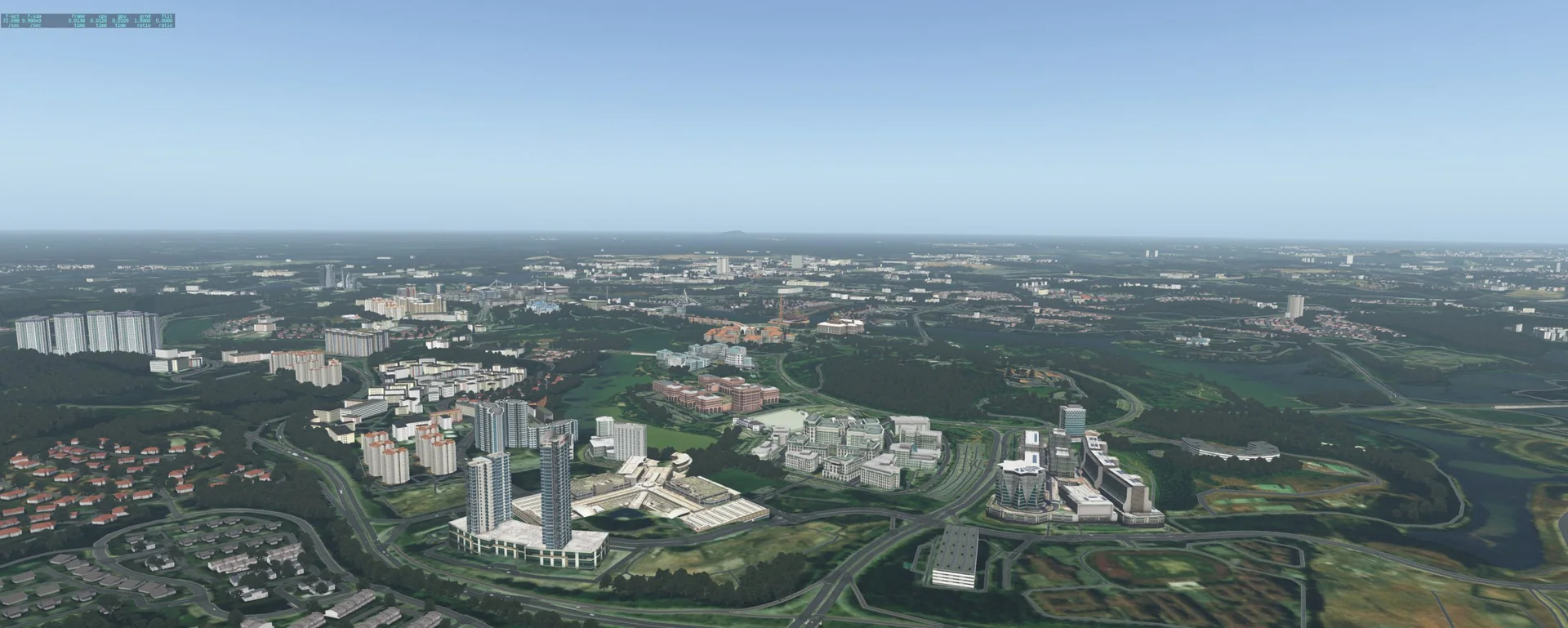
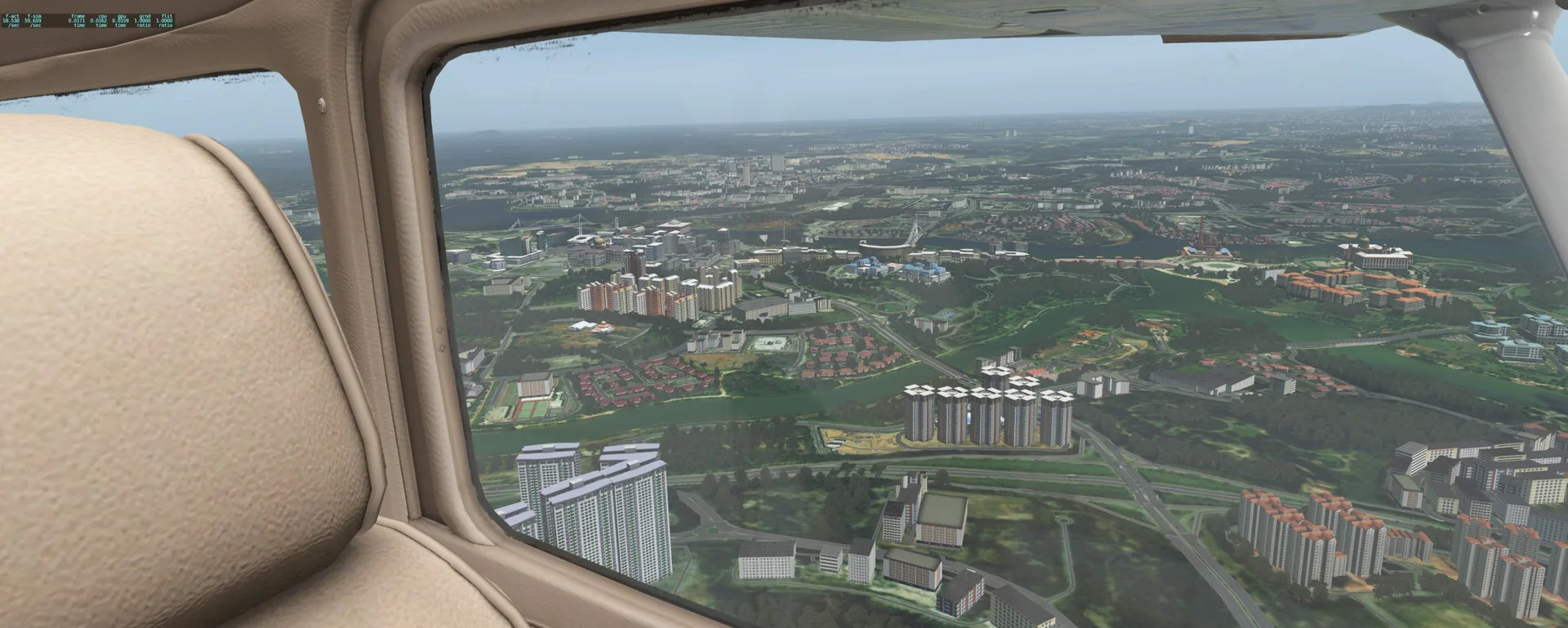
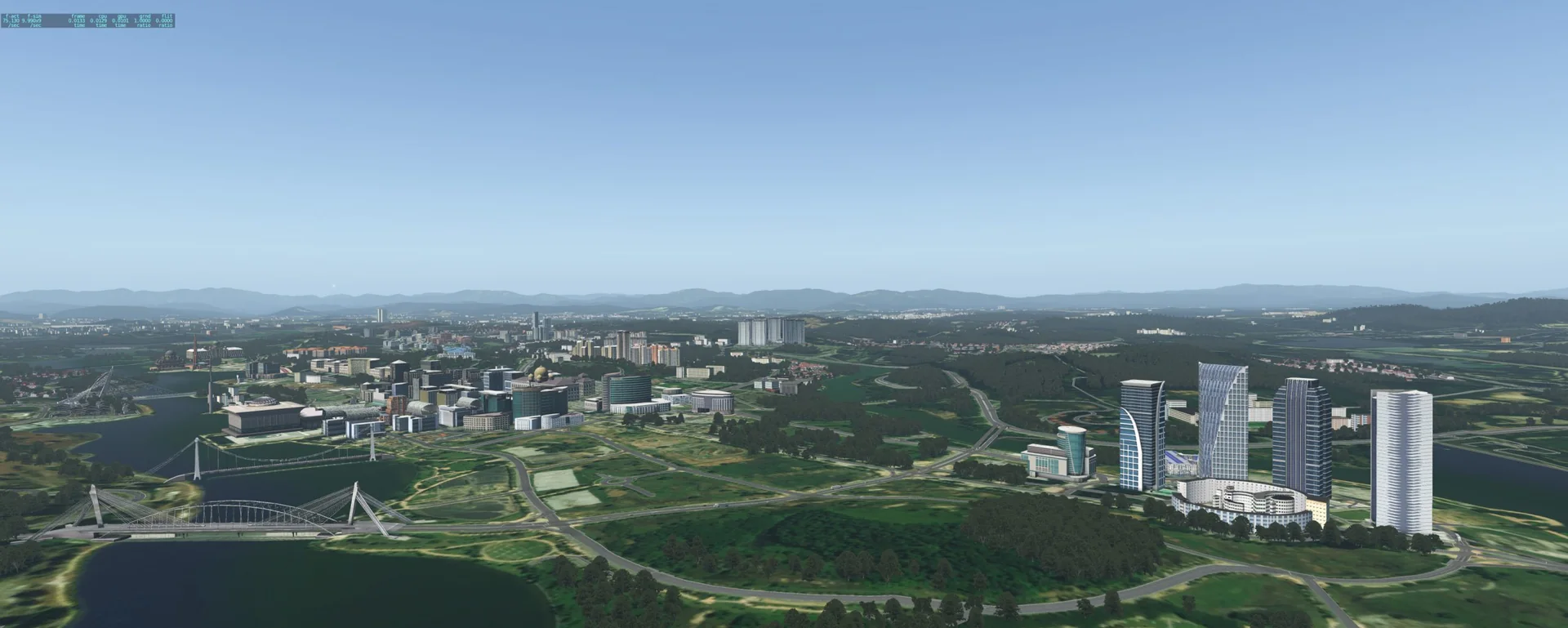
This scenery is our attempt to show Kuala Lumpur as realistically as we can, made with passion from Asia Pacific. After long months of work, we are proud to announce that it is finally here. The scenery is full of custom objects and autogen based on real-world geographic data. All structures are placed at their exact location, with the same shape as far as possible. Our own program maps data from OpenStreetMap into your simulator, giving you the ambiance and the immersive experience of being in Malaysia.
Features
Hand-placed custom scenery
Full custom hand-placed objects, facades, autogen and vegetation.
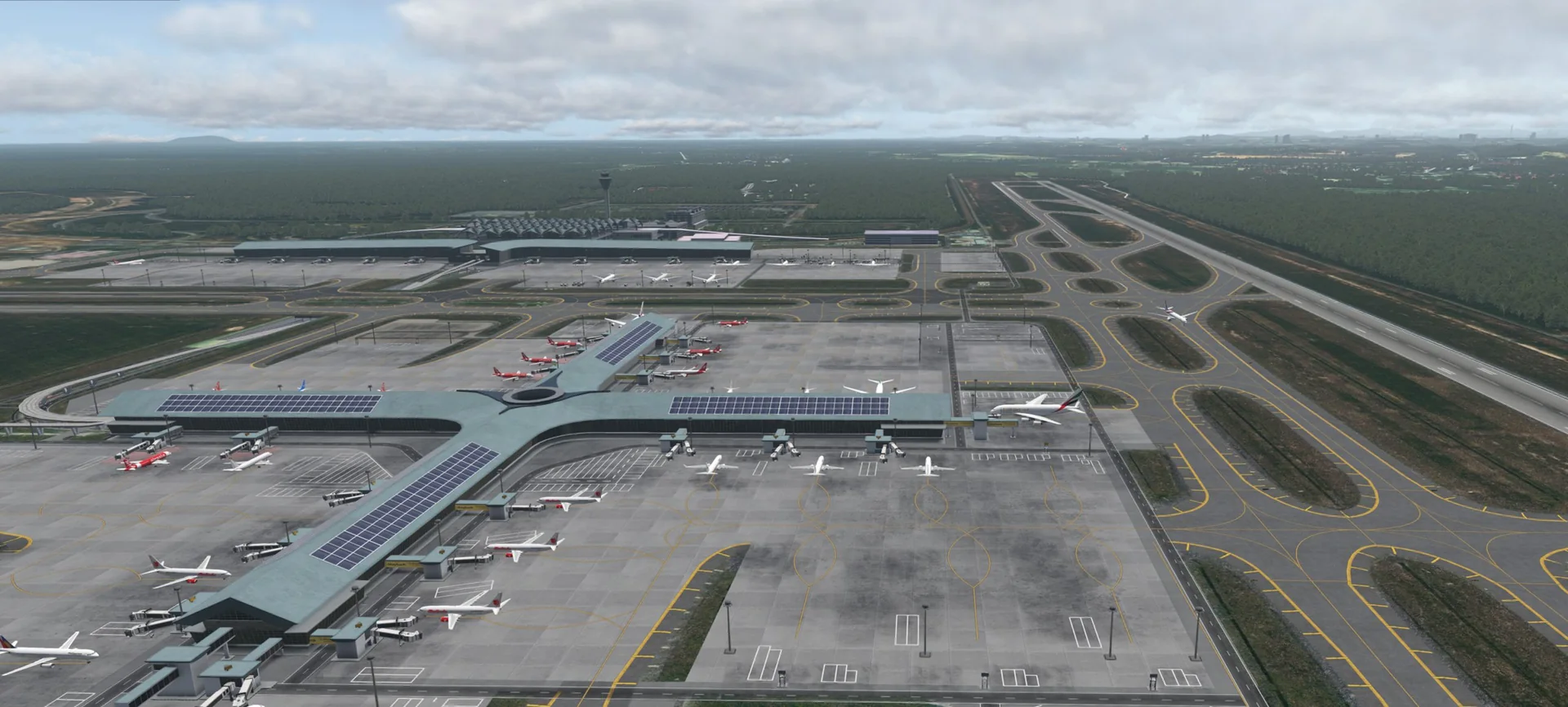
3D terminals
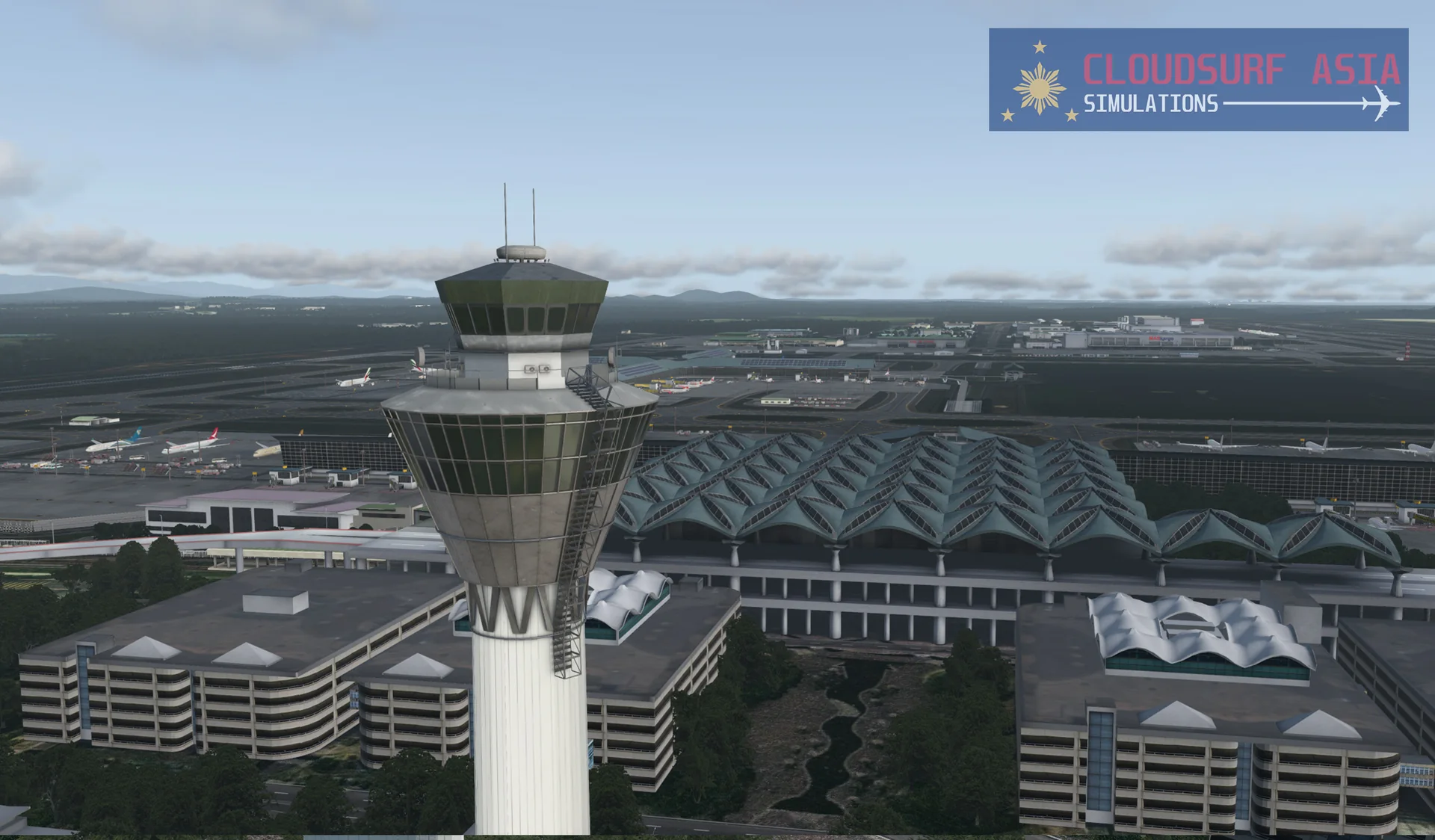
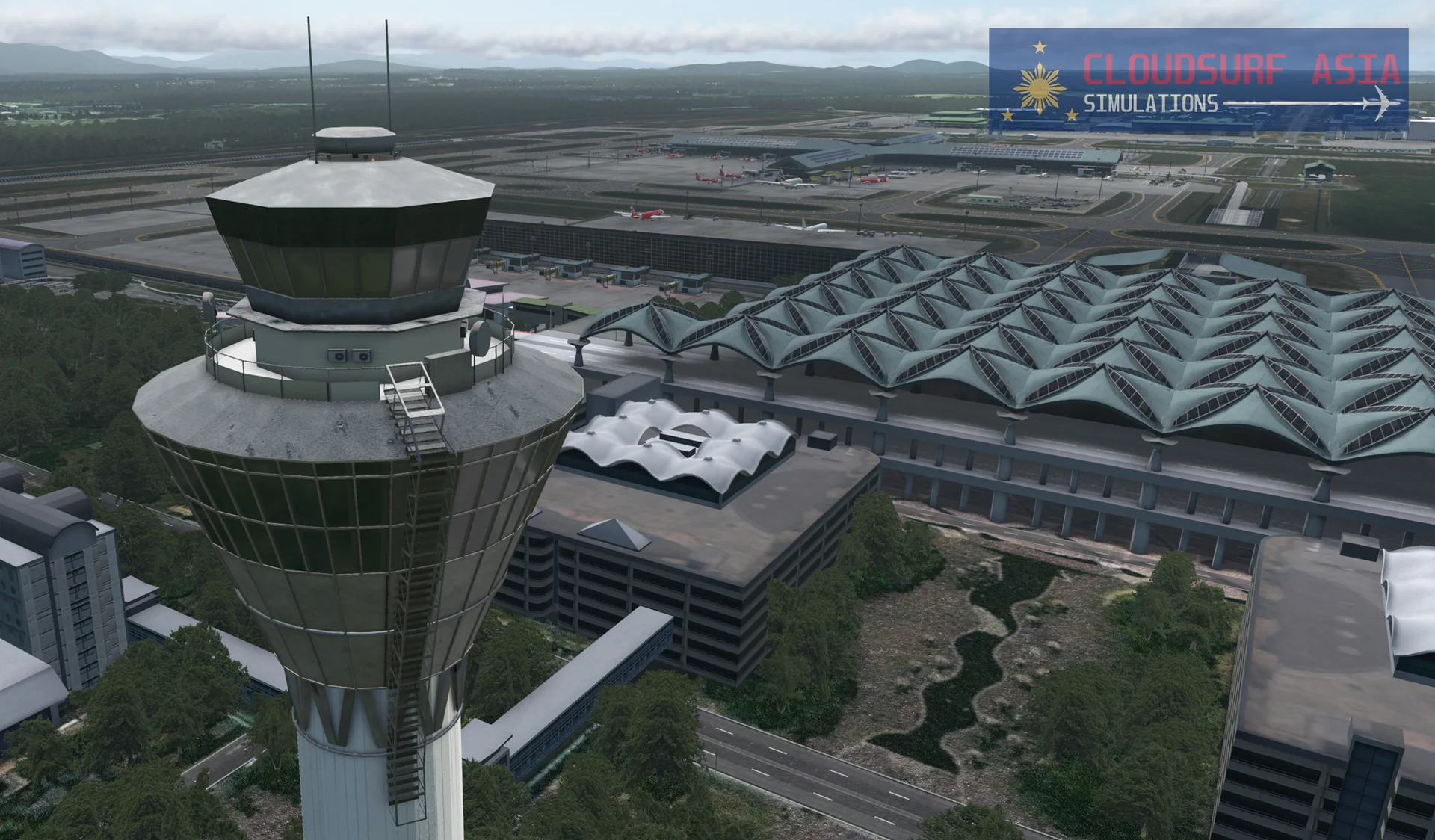
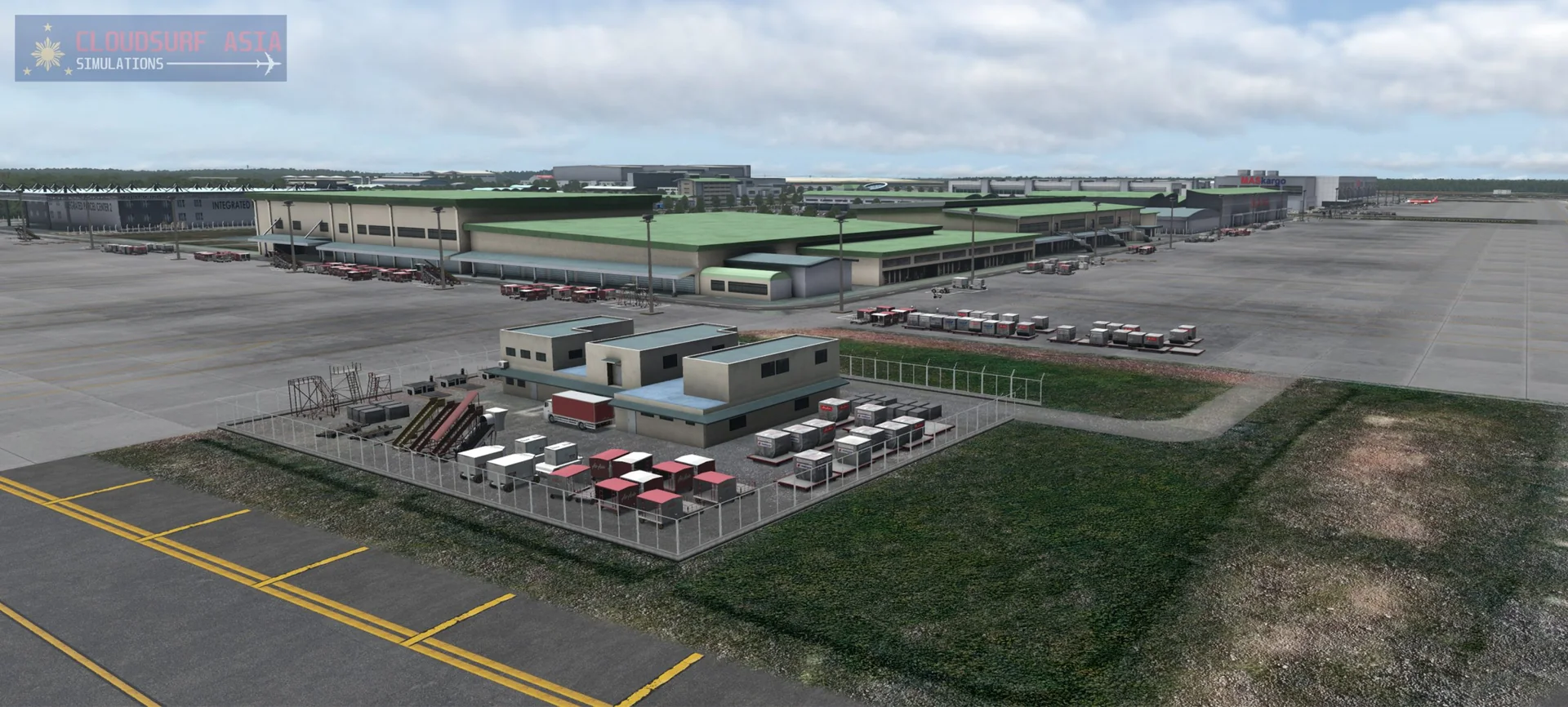
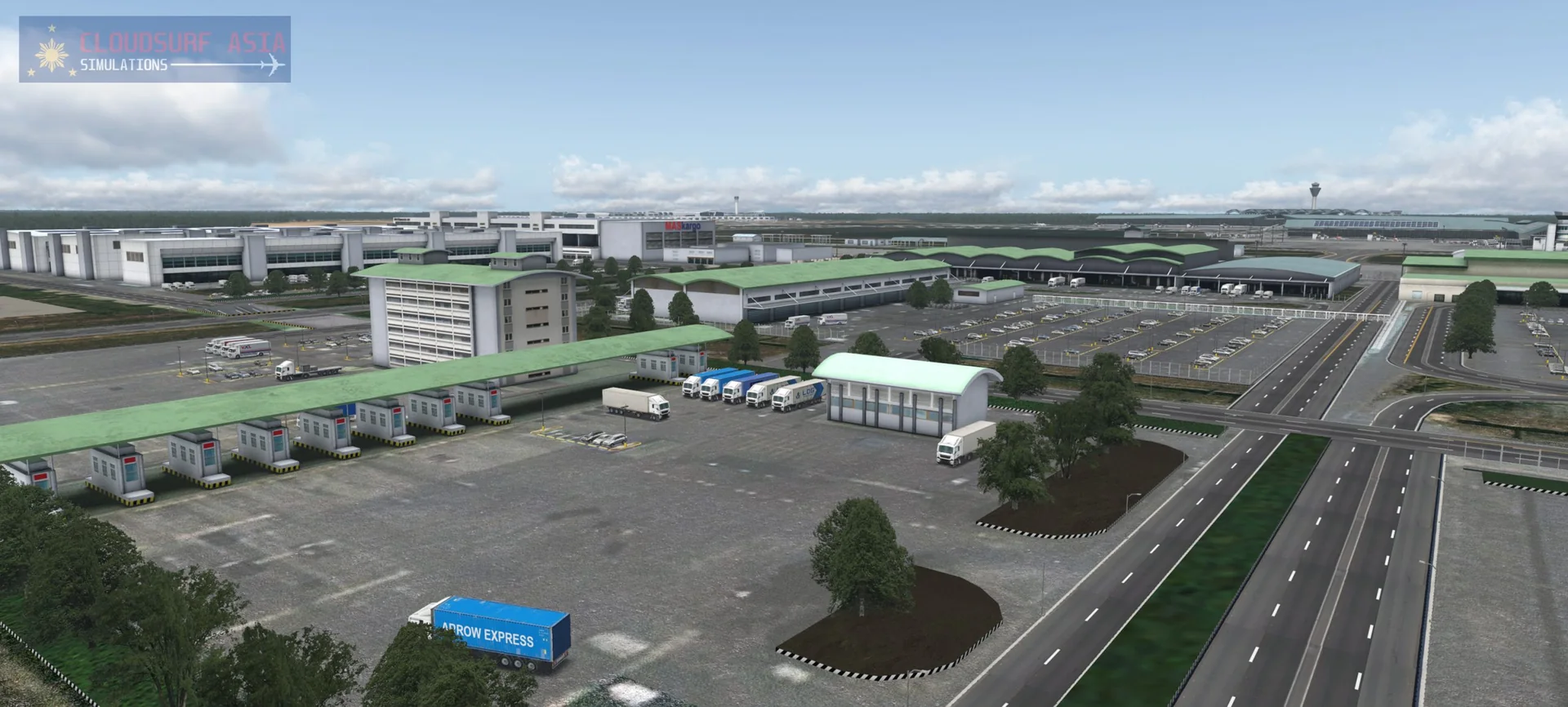
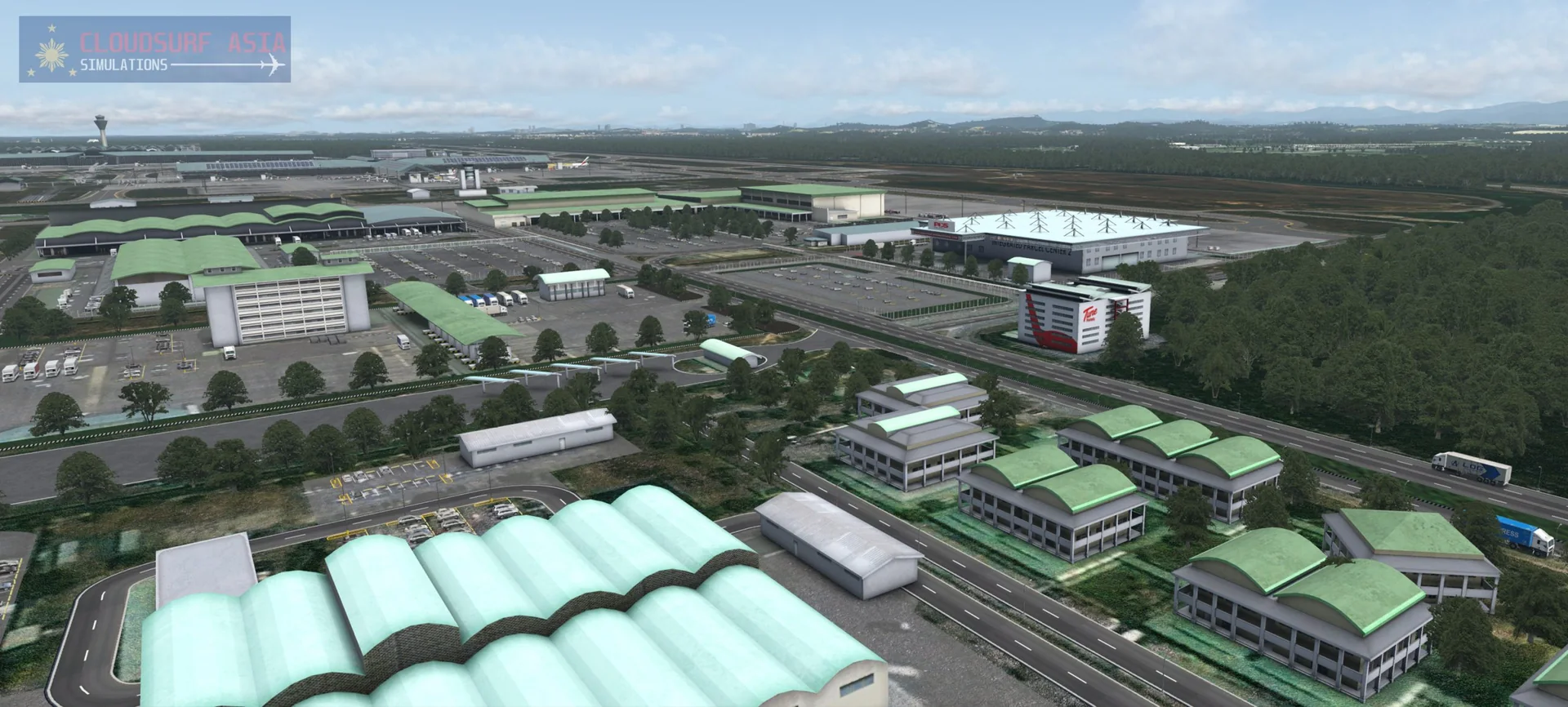
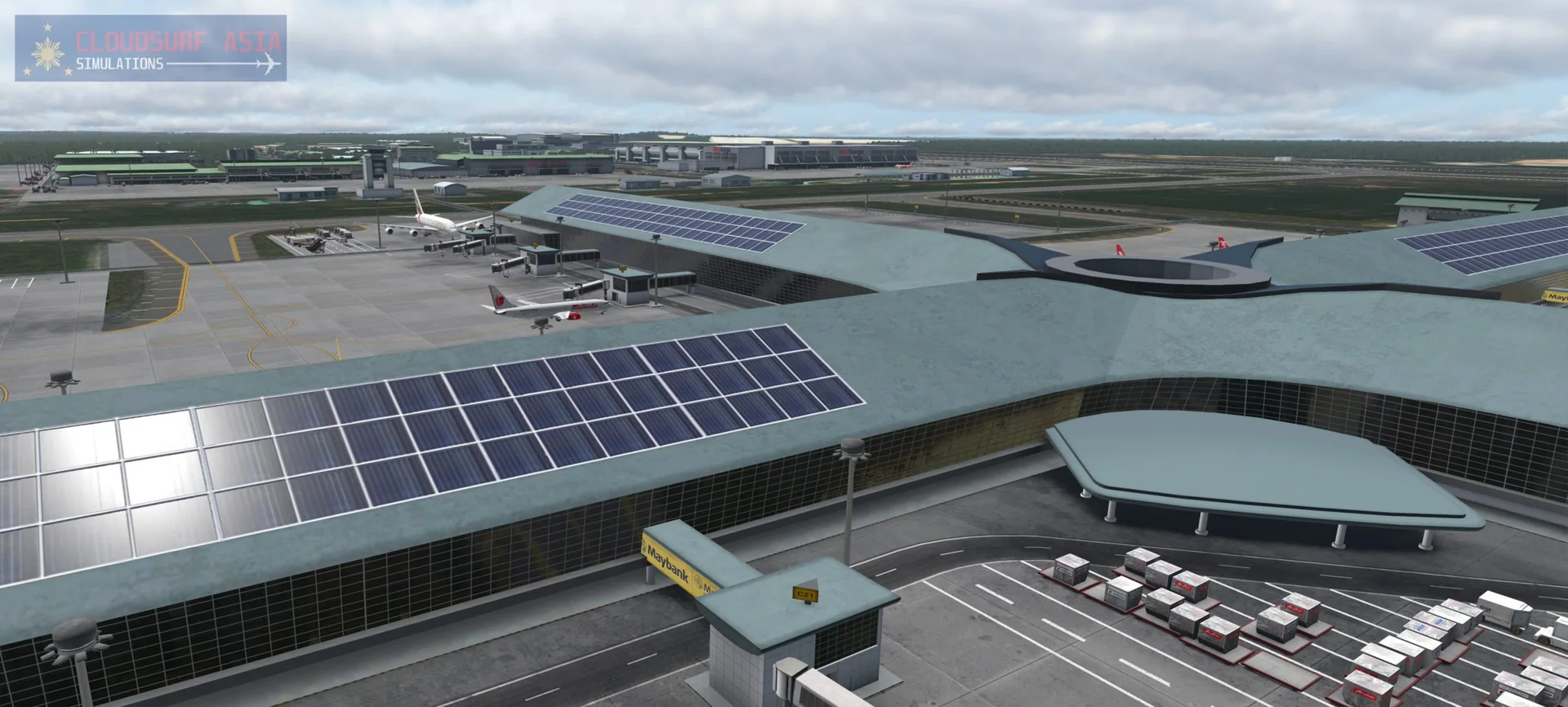
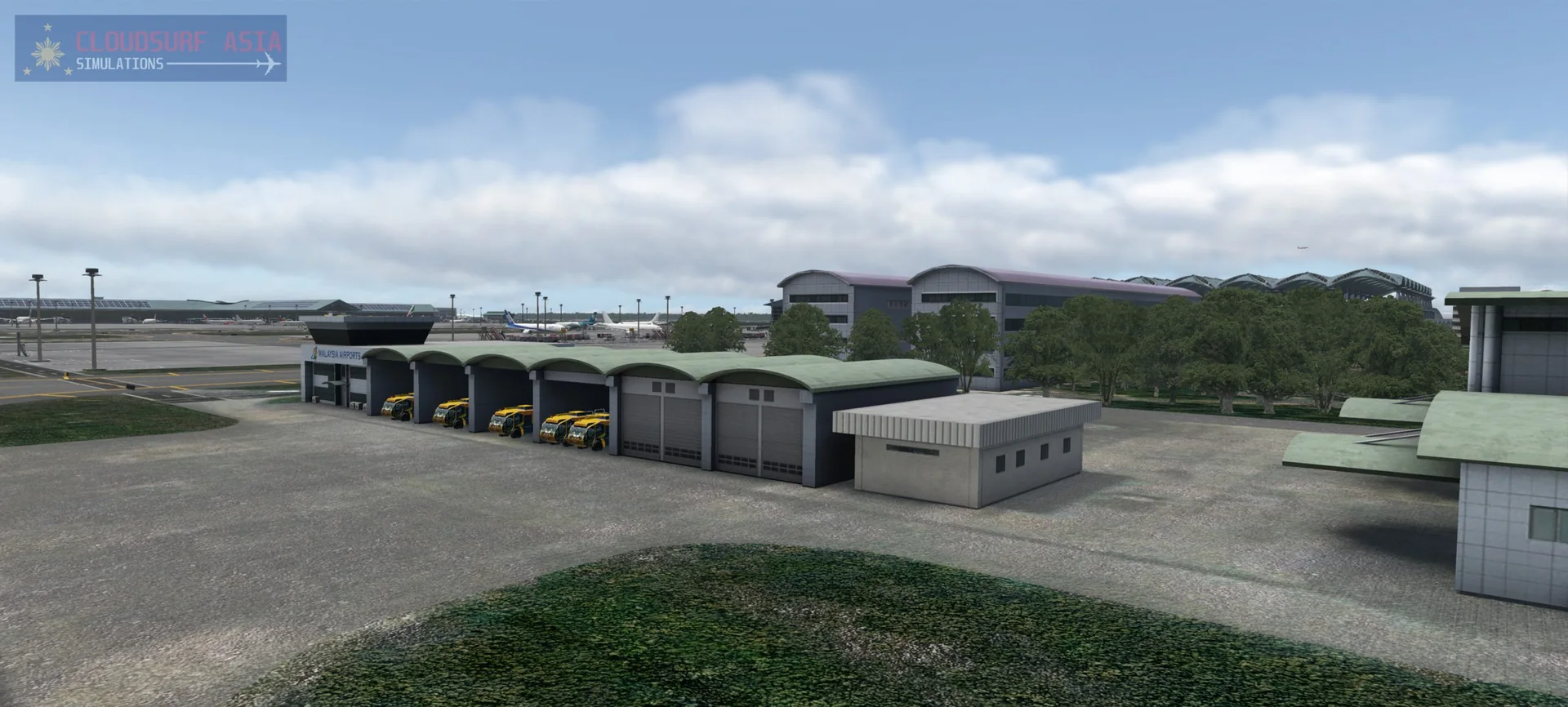
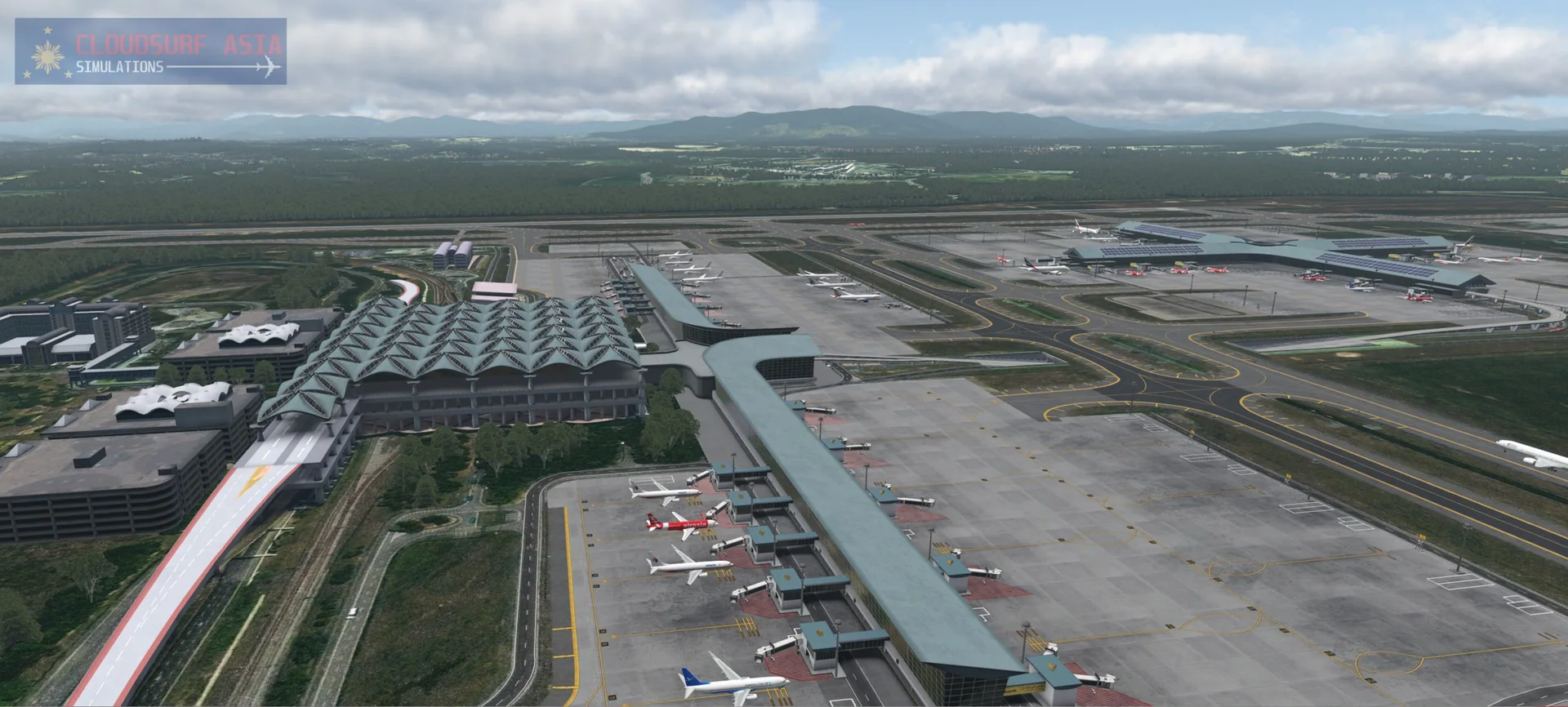
KLIA main terminal, KLIA Satellite, KLIA2 and the cargo terminals modelled in 3D.
HD airport textures
HD airport structure textures, full PBR on the airport buildings and on some city landmarks, with photo-real texturing, shadows and baked ambient occlusion on some structures.
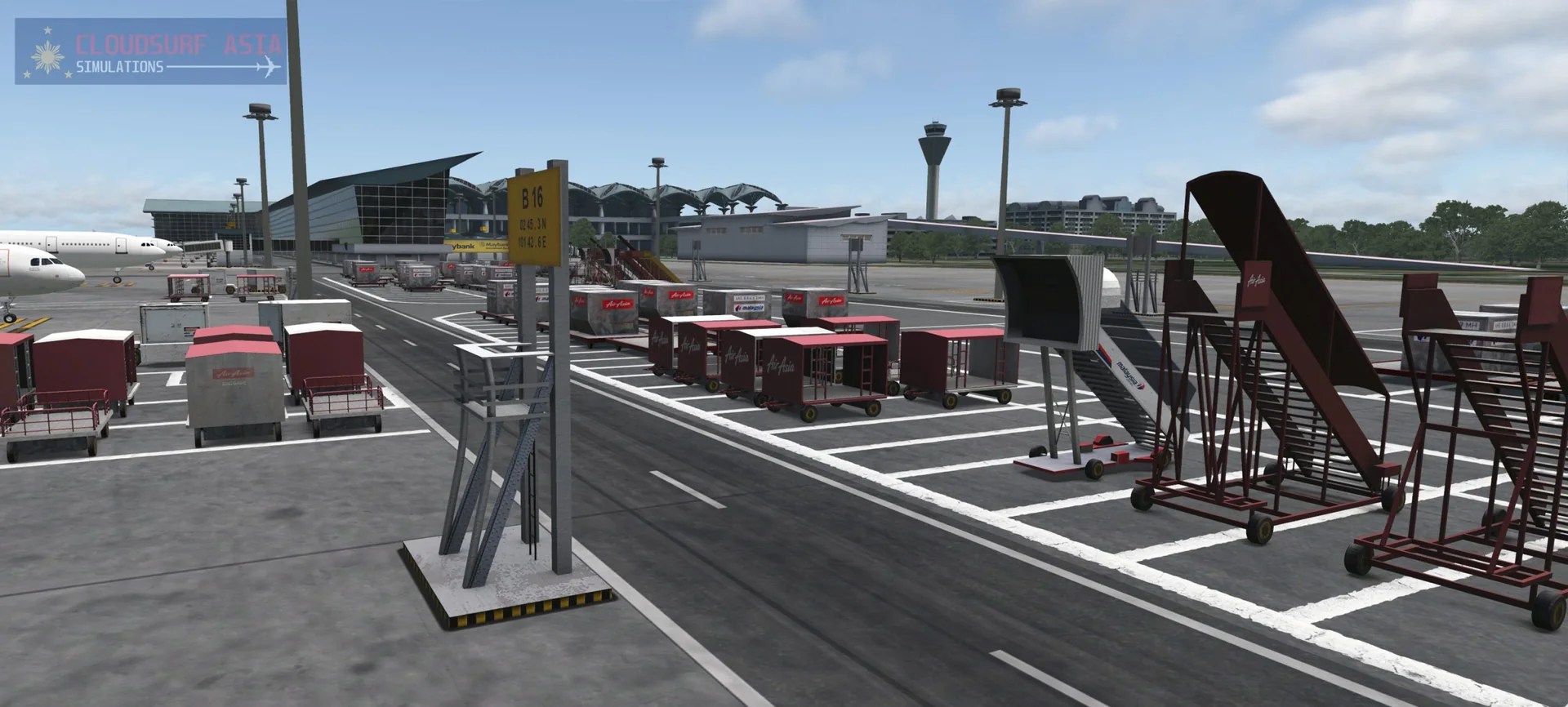
Ground and signs
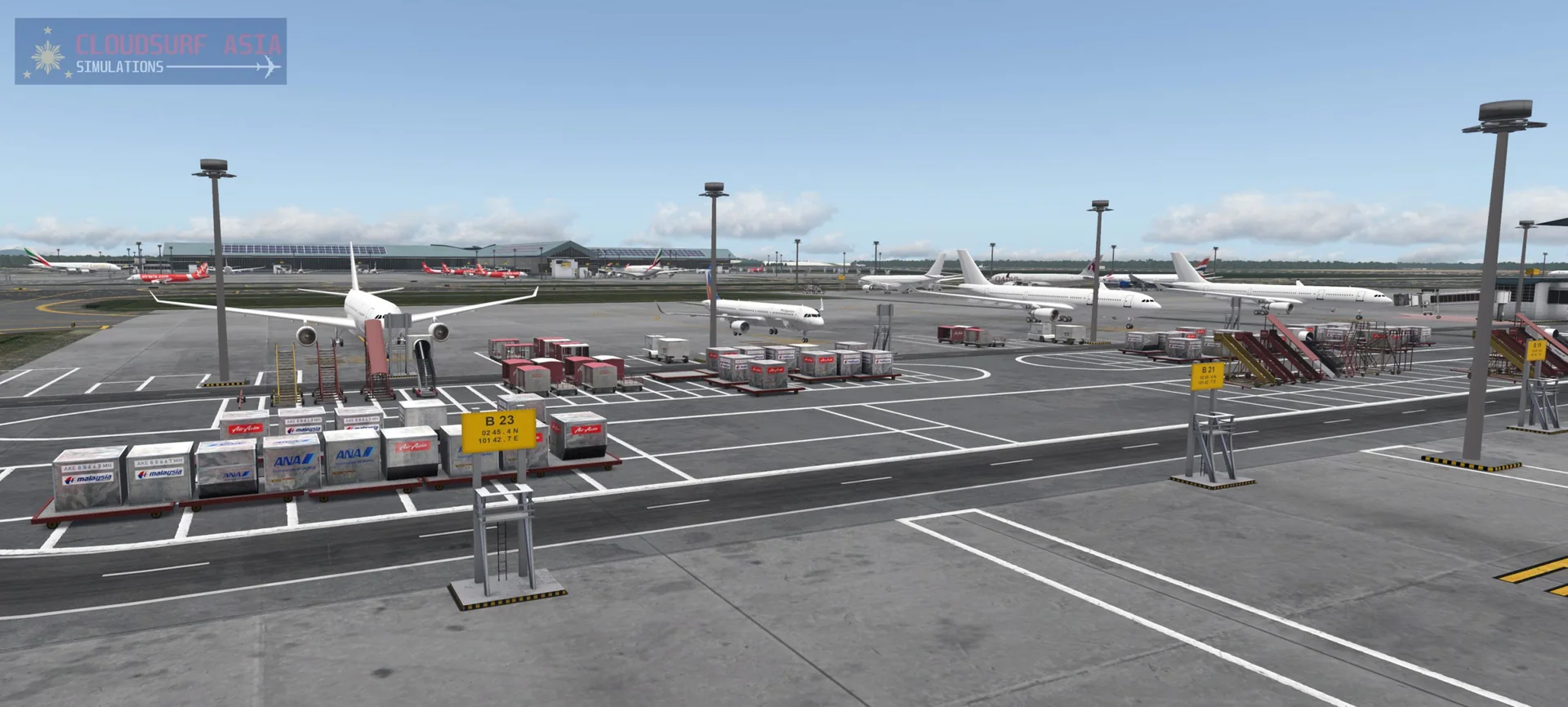
Custom HD ground textures, taxi routes, taxiways and signs that show the airport as it is. The markings follow about 80% of the real airport, including its ramp signs.
Lighting
Stunning HDR lighting all around the airport, and lighting textures across the city.
Animated jetways
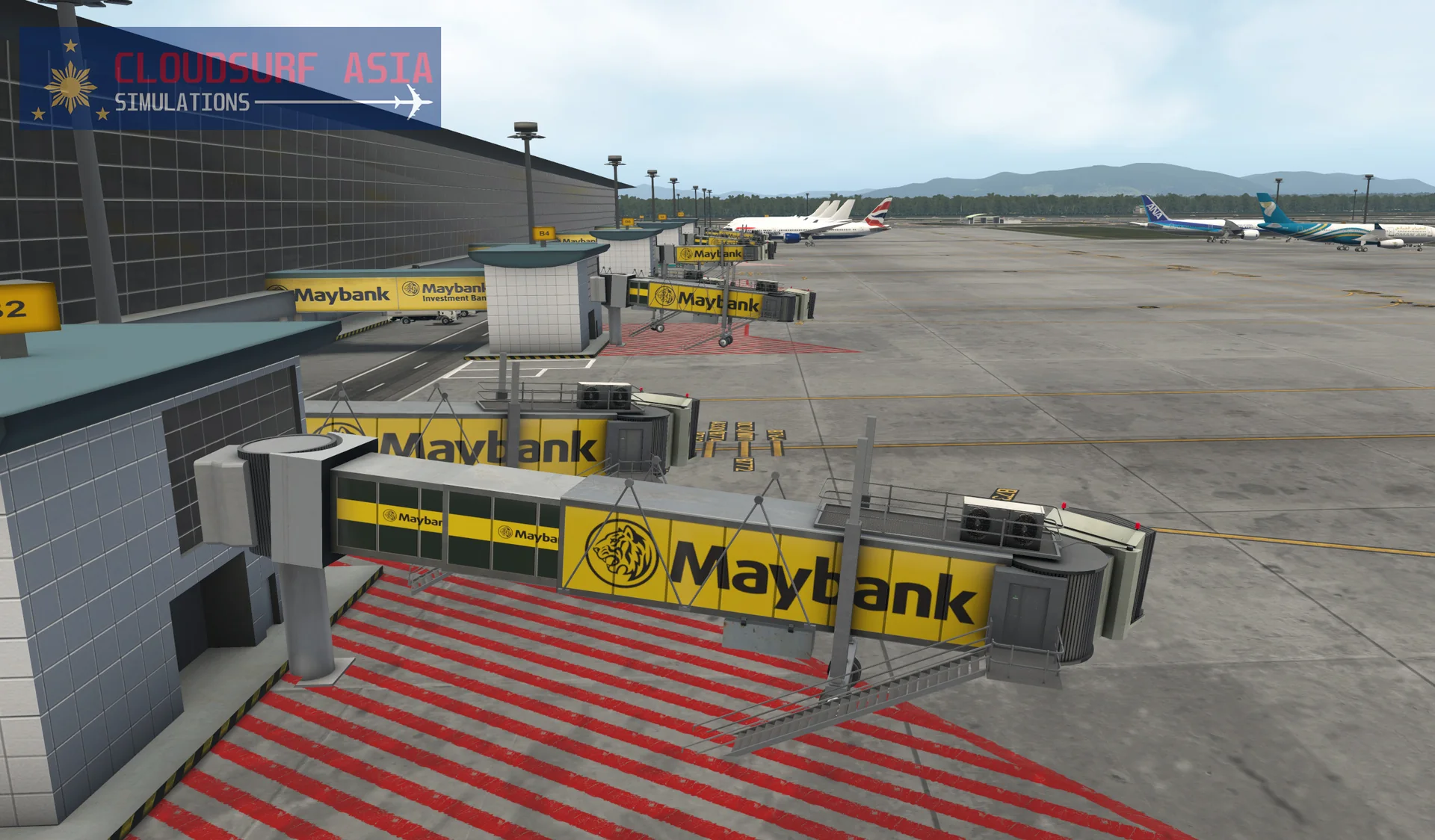
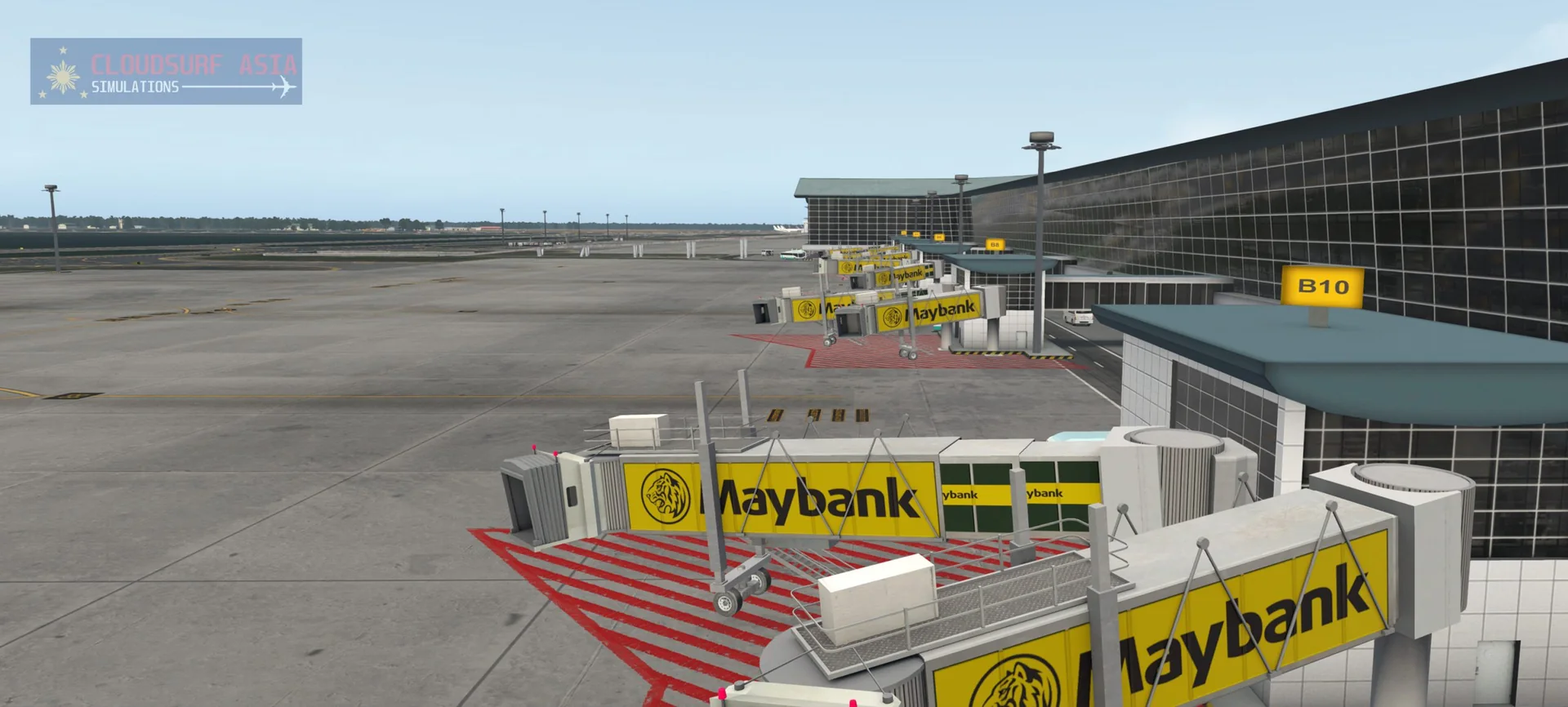
Custom jetway models, animated with the SAM plugin to match the jetways at KLIA.
Airport trains and vehicles
Custom animated airport trains, and custom catering trucks and buses specific to KLIA.
Roads and imagery
Custom roads around the airport area, high-resolution satellite imagery of the airport, and free augmented ortho photos of the city with 0-10% cloud cover.
Malaysian autogen
Full custom autogen that shows Malaysian communities with the exact shape and location of the structures, made by our own program from OpenStreetMap data.
AI traffic ready
Full ground routes, so third-party traffic such as Traffic Global, WT3 and Live Traffic is supported. We recommend Traffic Global for the most accurate AI traffic and low FPS impact.
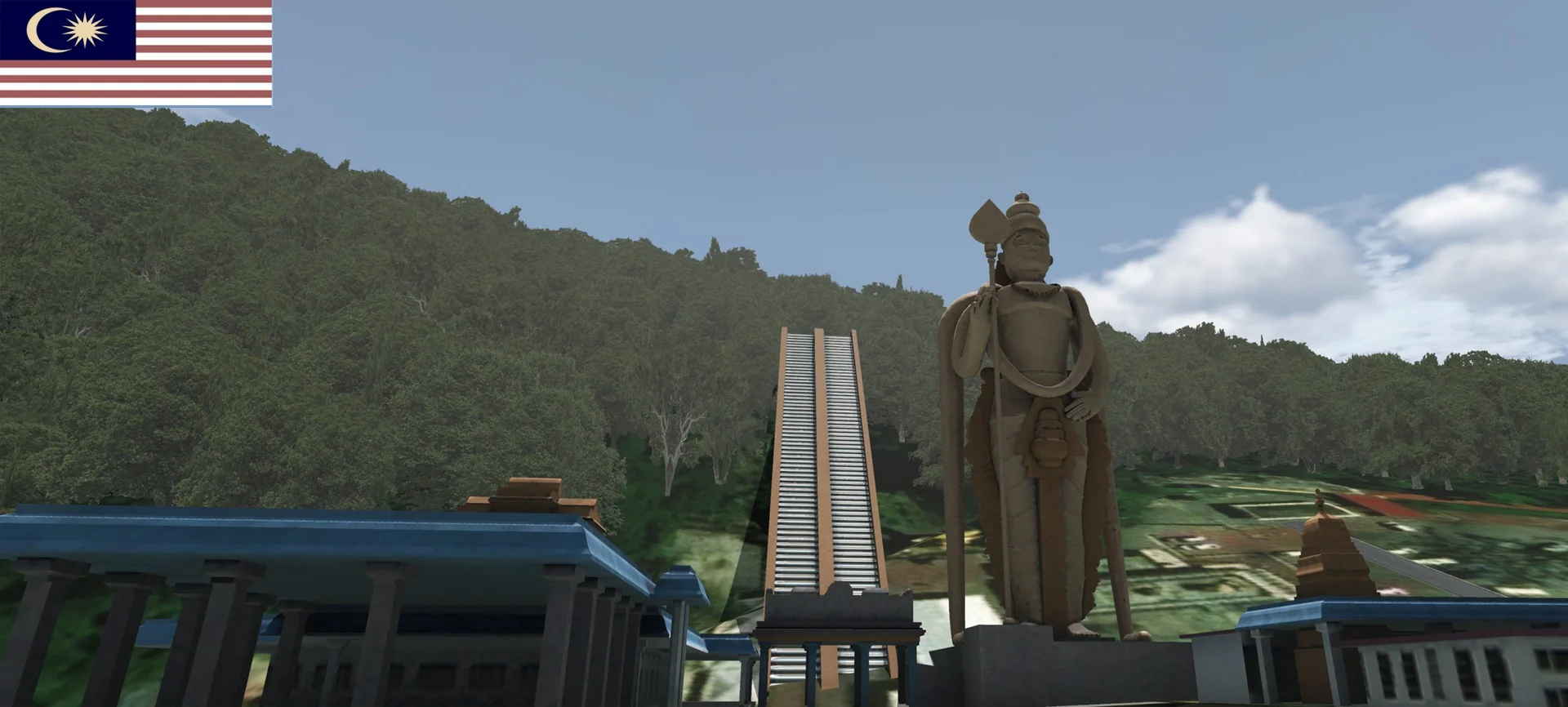
Enhanced locations
Custom 3D models and autogen in Kuala Lumpur City Centre, Mont Kiara, Damansara Perdana, Shah Alam, Brickfields, Mid Valley City, Pantai Dalam, Bukit Jalil, Batu Caves, Bukit Damansara, Putrajaya and more.
FPS friendly
Optimised for performance (depends on your machine and settings).
Screenshots
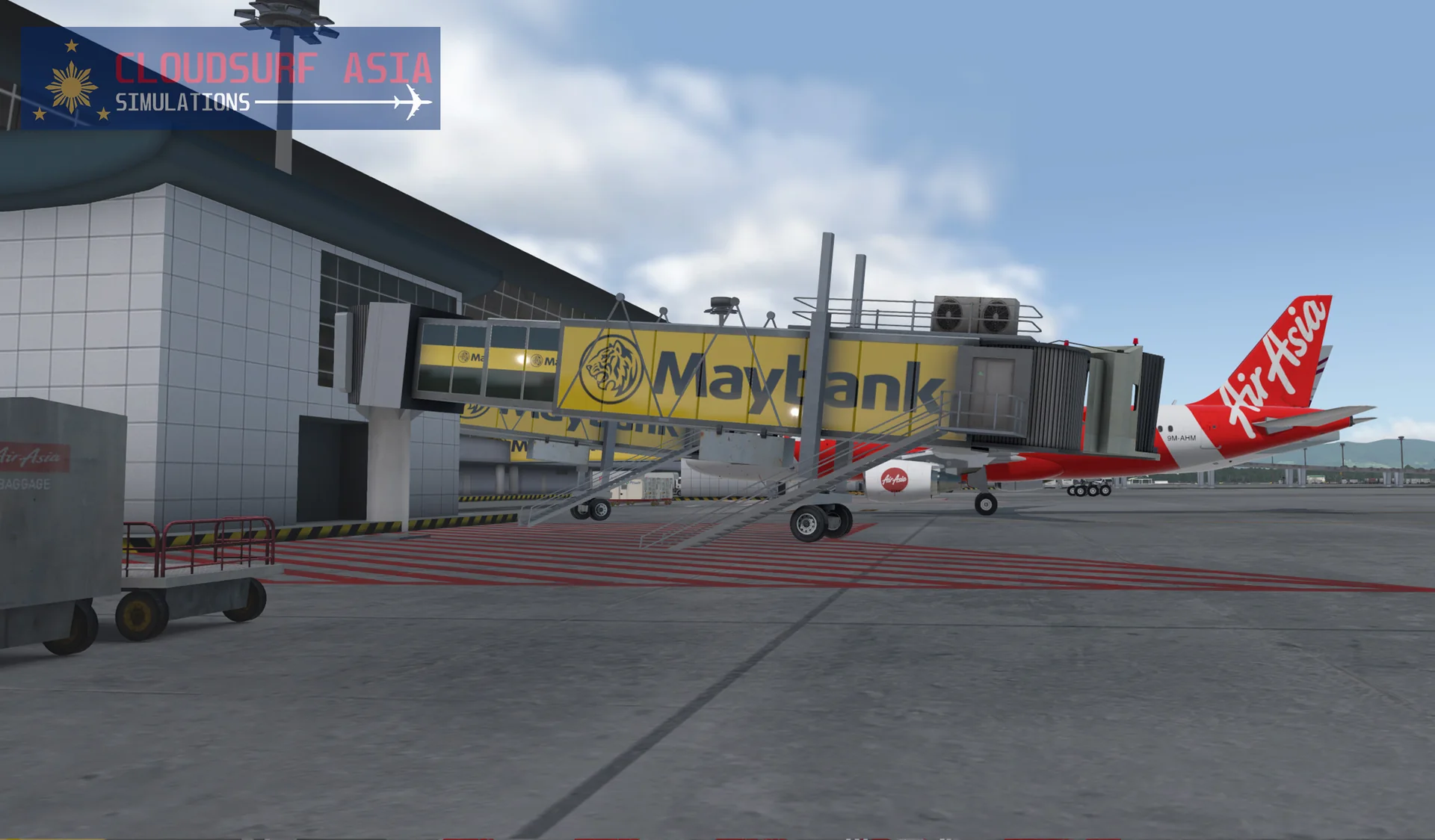
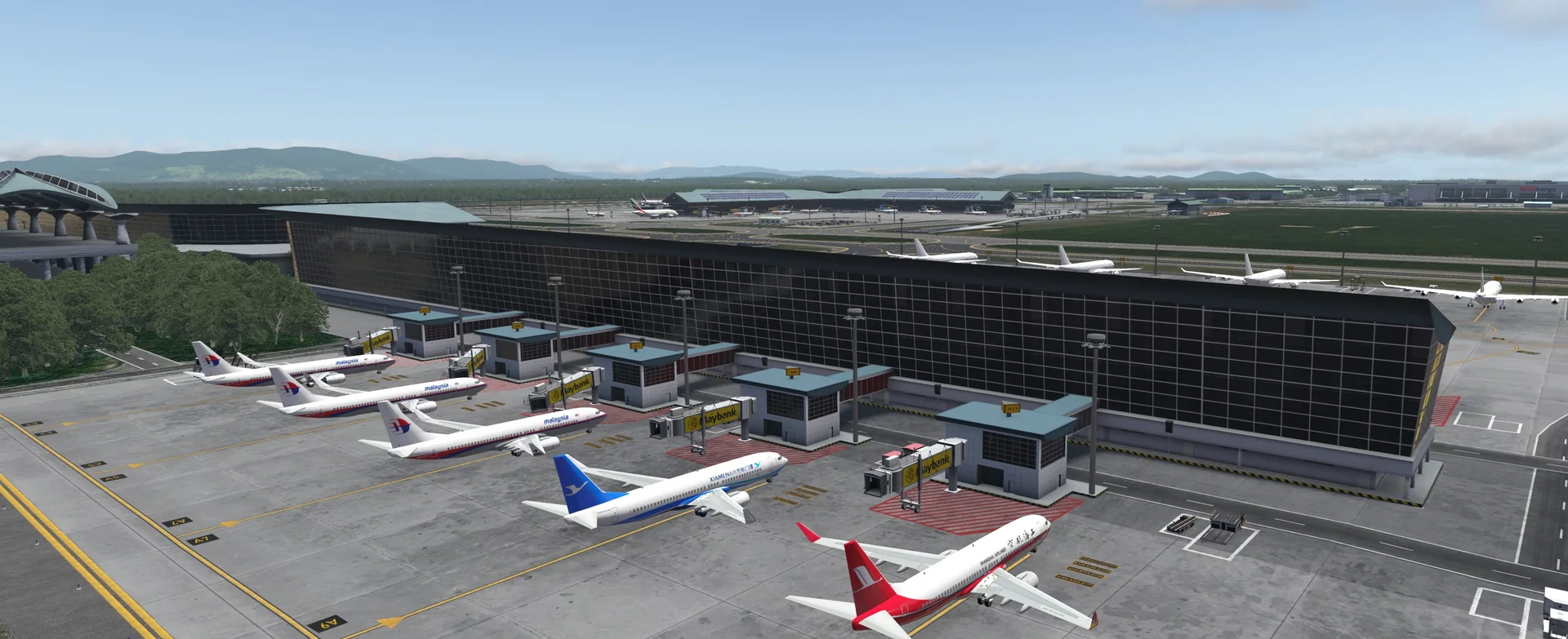
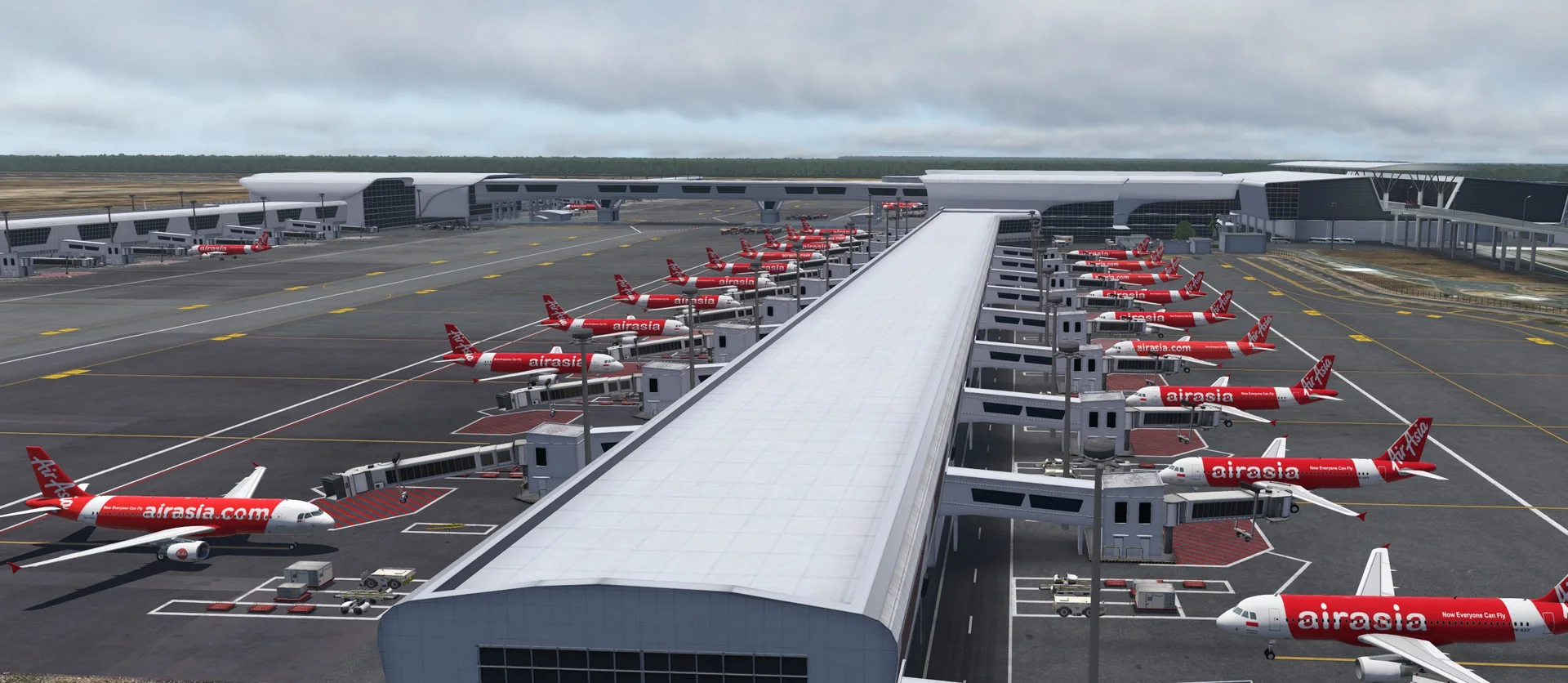
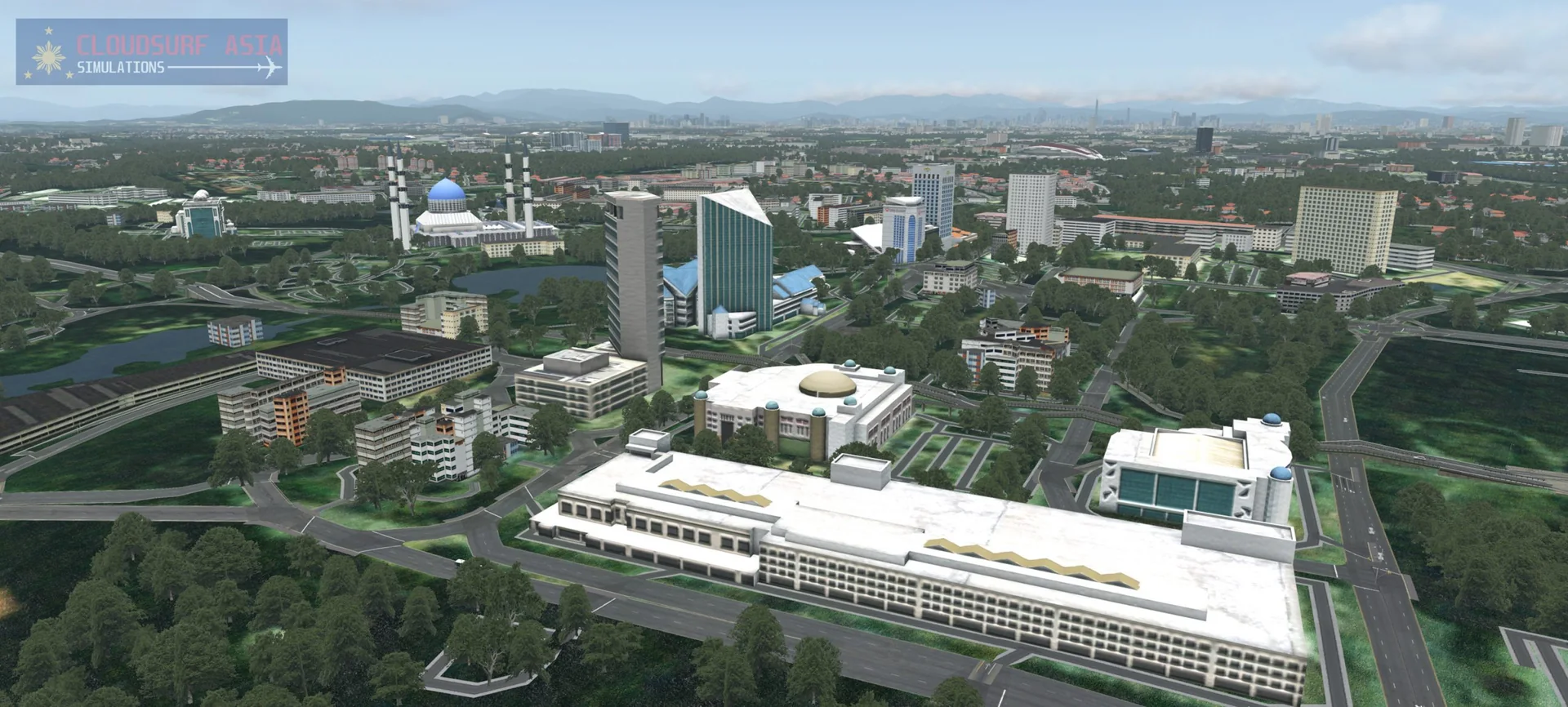
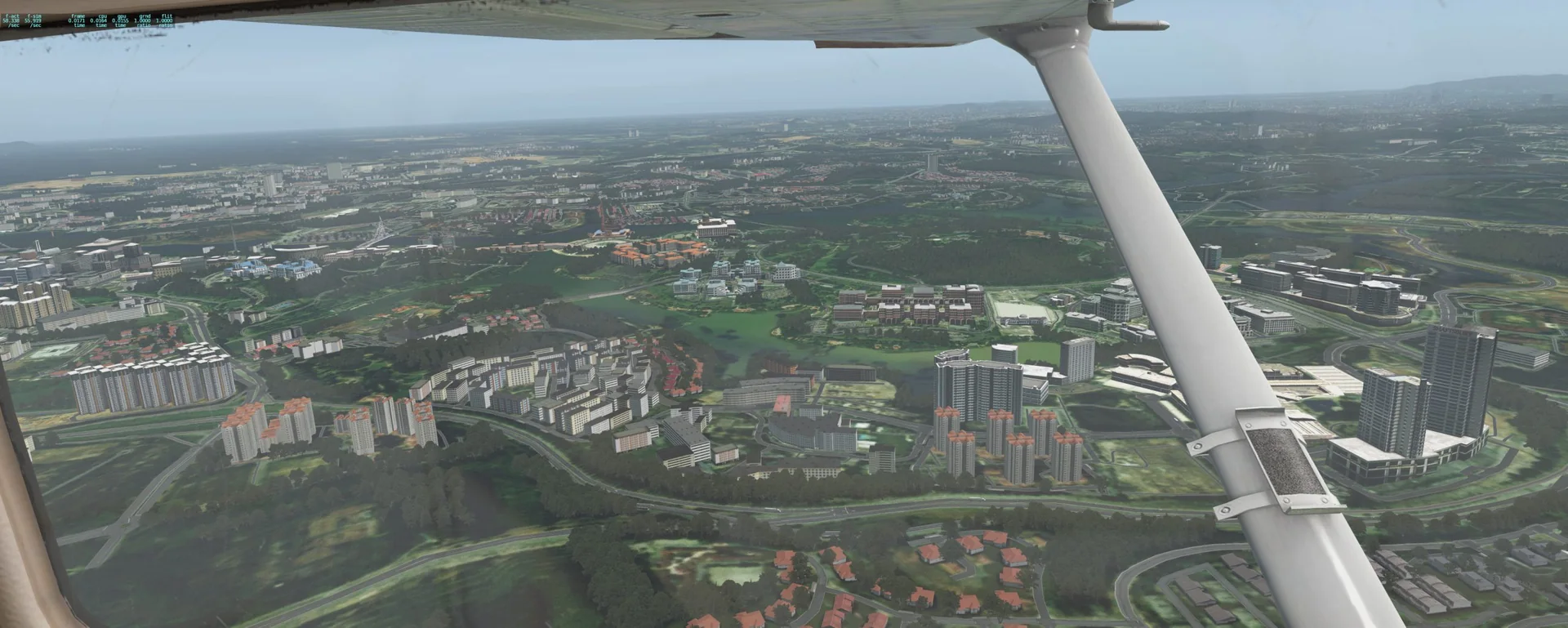
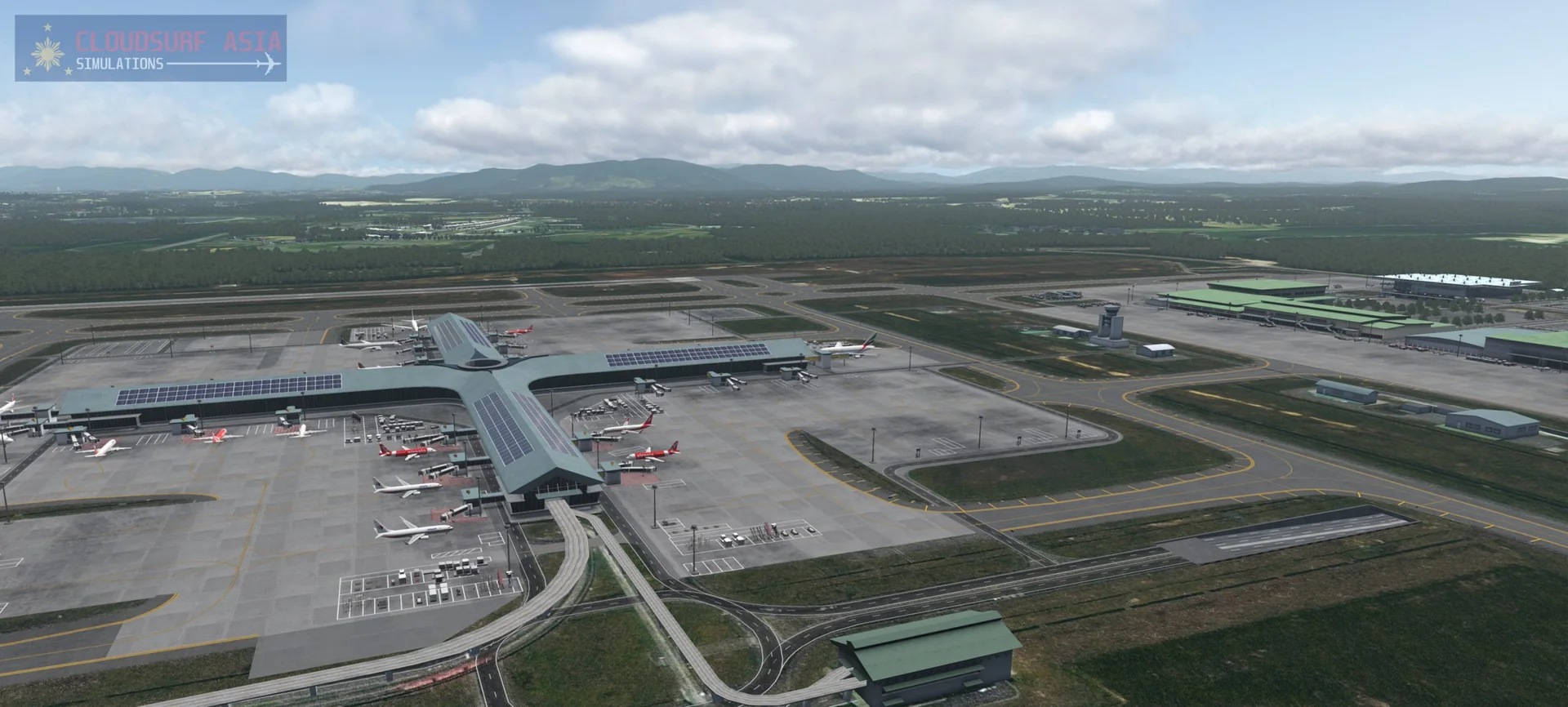
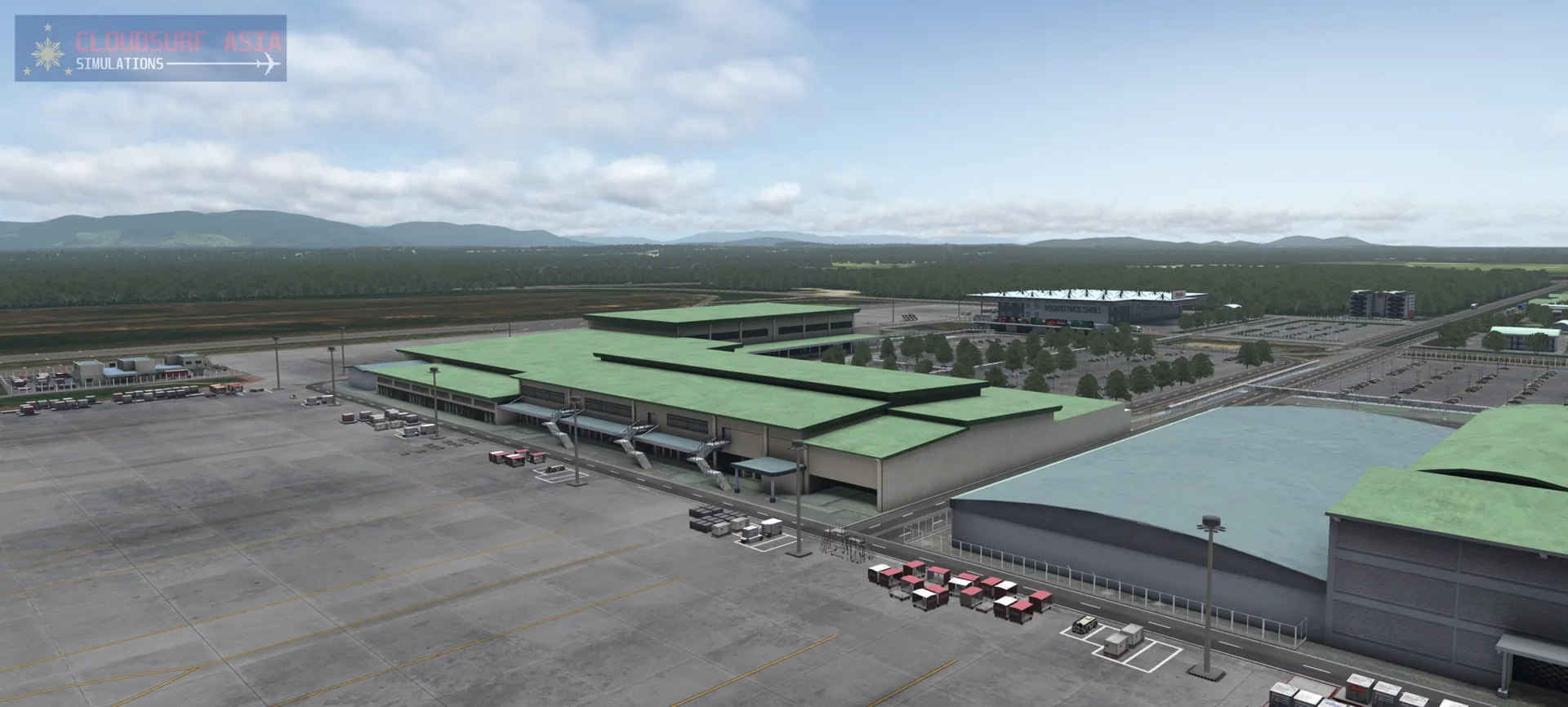
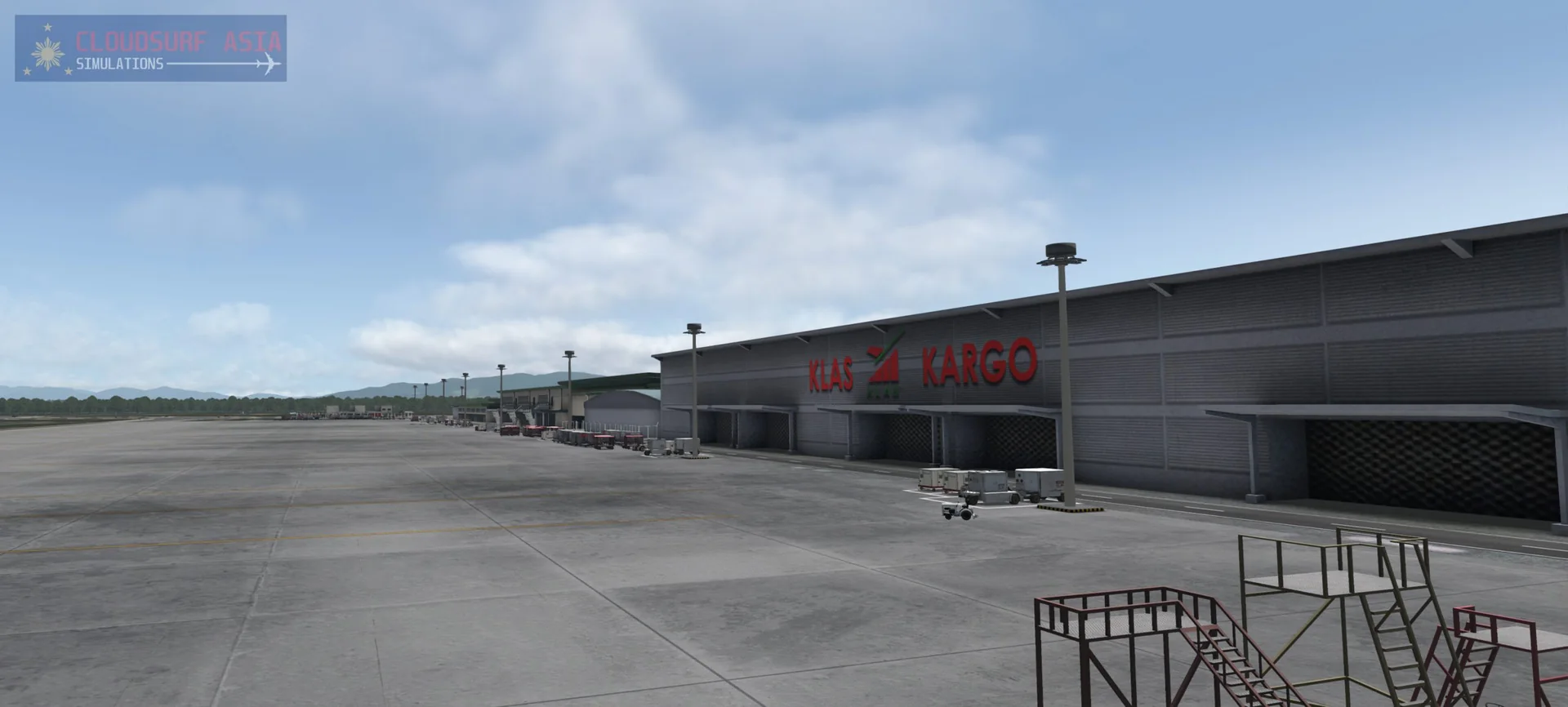
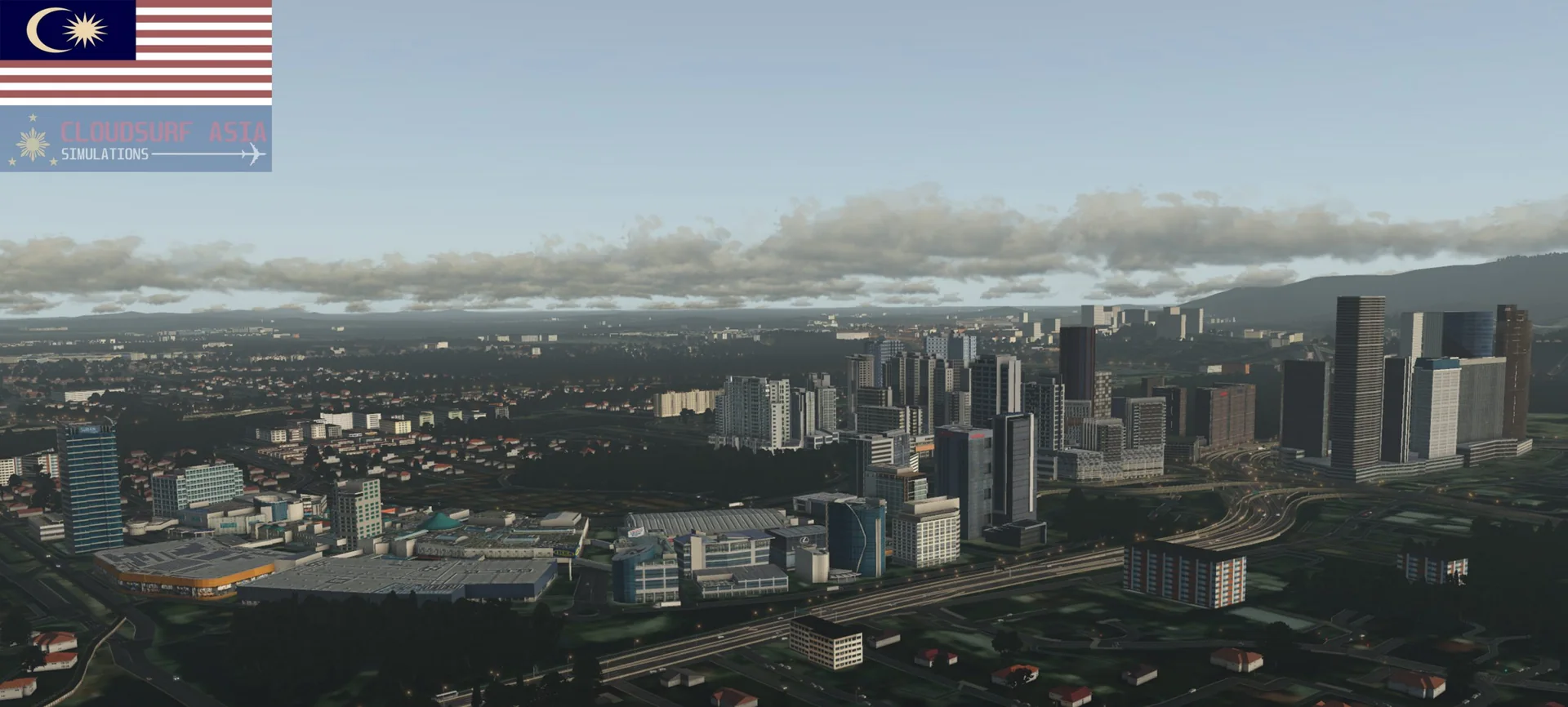
Requirements
- X-Plane 11 (version 11.40 or later, also 11.50) or X-Plane 12
- The free SAM plugin (Scenery Animation Manager suite) must be installed
- Core i5 or higher
- 8 GB RAM minimum; 16 GB or more is best
- GPU: GTX 1050 or better with at least 6 GB VRAM (lower GPUs not tested, but reported to work)
- The package is very large because of the area it covers; you may want to adjust your settings
Read before buying
- Please check the screenshots carefully. What you see in the screenshots is what you get; if you do not like what you see, please do not buy this product.
- Even though we tried our best to show the Malaysian ambience, some areas are not modelled because of lack of access, lack of data or performance.
- The autogen is not perfect: it relies on OpenStreetMap data, and many areas of Kuala Lumpur lack OSM data, so some areas have no autogen. Some areas use hand-placed custom houses and buildings that represent Malaysia, but they are not perfect. This may improve as the OSM data of Kuala Lumpur improves; we will rescan the data and release an autogen update.
- Some buildings may not look great at very close distance, because we compressed the textures to keep the impact low with hundreds of models included.
- Airport structures may not be accurate in some areas, especially where we have no access: either we did not have enough data to model them, or we left them out for performance.
- No ground traffic in the airport area for now, because the GroundTraffic plugin does not yet work on X-Plane 11.50.
- The port area and WMKF are not included. They might be added in a later update, but no promises.
- WMSA is included but not modelled yet because of the workload; we will provide it in a separate package. Please do not remove WMSA, as it plays an important role in the whole package.
- The scenery will need improvements. These will come in later updates, with no promise on when, but bug fixes are patched as soon as possible.
- Refunds: please see our refund policy before buying.
- You can help us improve the product by sending us more accurate information you have.
Installation
- The installation has two downloads: the scenery itself and the regional ortho imagery. The regional augmented ortho imagery is a separate download, for easier updates, and it is free, also for anyone who does not buy the payware package.
- Part 1: download the free regional augmented ortho imagery (MEGA) and unzip it. You get two folders: ACS_Malaysia_3_Orthos1 and ACS_Malaysia_3_Orthos2. Drag and drop both folders into the Custom Scenery folder of your X-Plane installation.
- Part 2: buy the product from ORBX or Simmarket and download it. Open the ZIP file: it holds 5 folders. Drag and drop these 5 folders into your X-Plane Custom Scenery folder.
- Your Custom Scenery folder should then hold these folders, in this order: ACS_Malaysia_0_WMKK, ACS_Malaysia_0_WMSA, ACS_Malaysia_1_City, ACS_Malaysia_1_City2, ACS_Malaysia_2_Overlay, ACS_Malaysia_3_Orthos1, ACS_Malaysia_3_Orthos2.
- ACS_Malaysia_3_Orthos1 is optional imagery with more detail in small highlight areas. If your video card (GPU) memory struggles you can remove it, but we highly recommend keeping it for the best look.
- Remove any other WMKK and WMSA scenery you have, and make sure the SAM plugin is installed.
- If you have custom scenery inside the area of the regional ortho imagery, place it above our scenery so it shows in the simulator.
- Note: in X-Plane 11.50 and later, textures are blurry when your plane is far from the object.
Questions? Email support@cloudsurfasia-simulations.com.